OPERATOR’S FIELD GUIDE / HOW TO USE
Switch on your curiosity.
Your first program is a few lines away. Here’s how to get from the blinking cursor to something worth saving.
01 / START HERE
Meet READY.
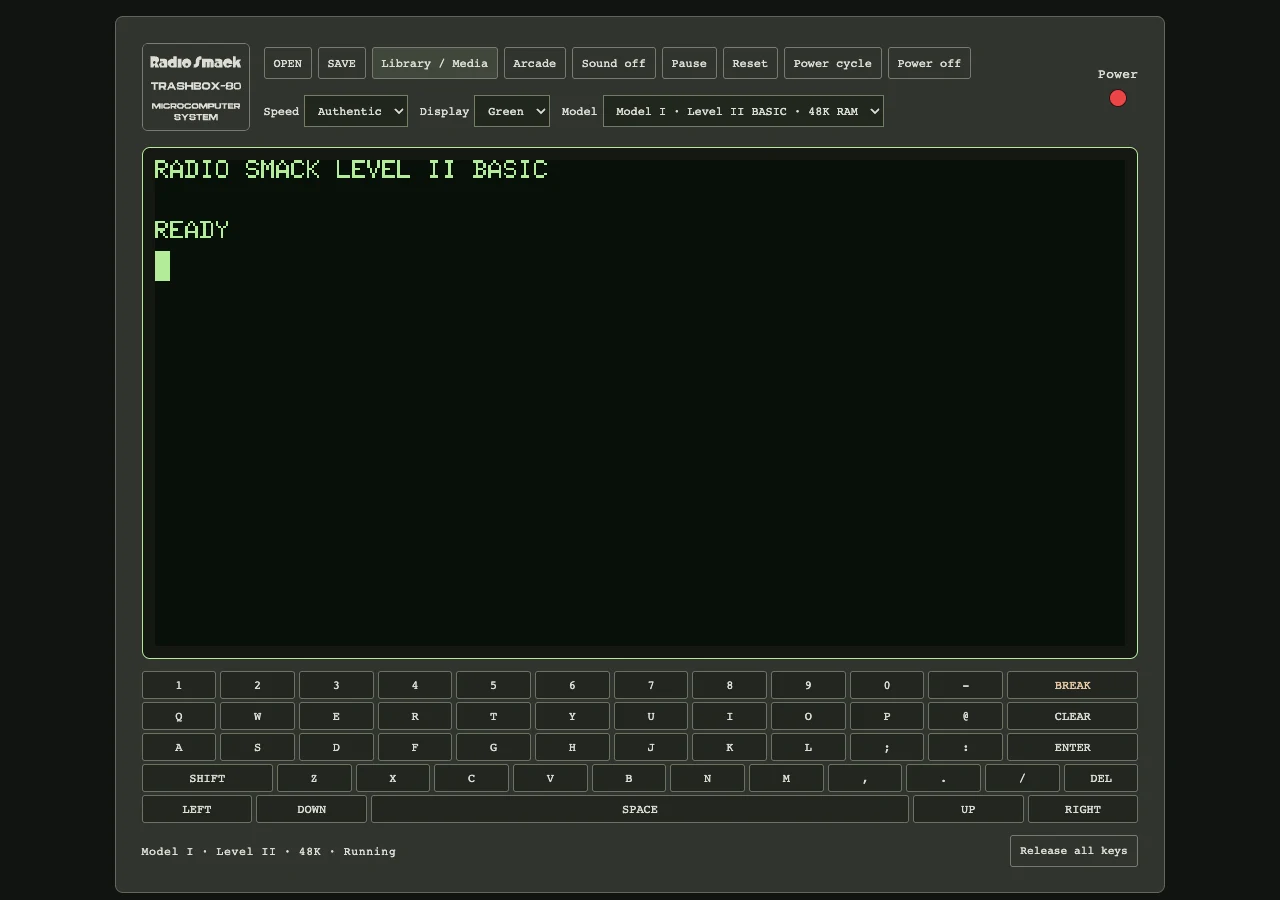
Open app.trashbox80.com. The computer starts automatically with RADIO SMACK LEVEL II BASIC, then READY and a blinking block cursor. You don’t need to select a ROM or answer a memory-size question.
On a desktop, click the computer screen before typing. On a phone or tablet, use the built-in keys below the screen. The computer uses its own keyboard instead of opening your phone’s software keyboard.
02 / MAKE SOMETHING HAPPEN
Your first BASIC program.
Type each line below and press ENTER after it. Line numbers store instructions; RUN starts them.
10 PRINT "HELLO FROM TRASHBOX-80"
20 GOTO 10
RUN
The message repeats because line 20 sends BASIC back to line 10. Press the built-in BREAK key, or Escape on your physical keyboard, to stop. A BREAK IN message followed by READY is expected.
Try a program with an ending. Enter NEW first to clear the previous program, then type:
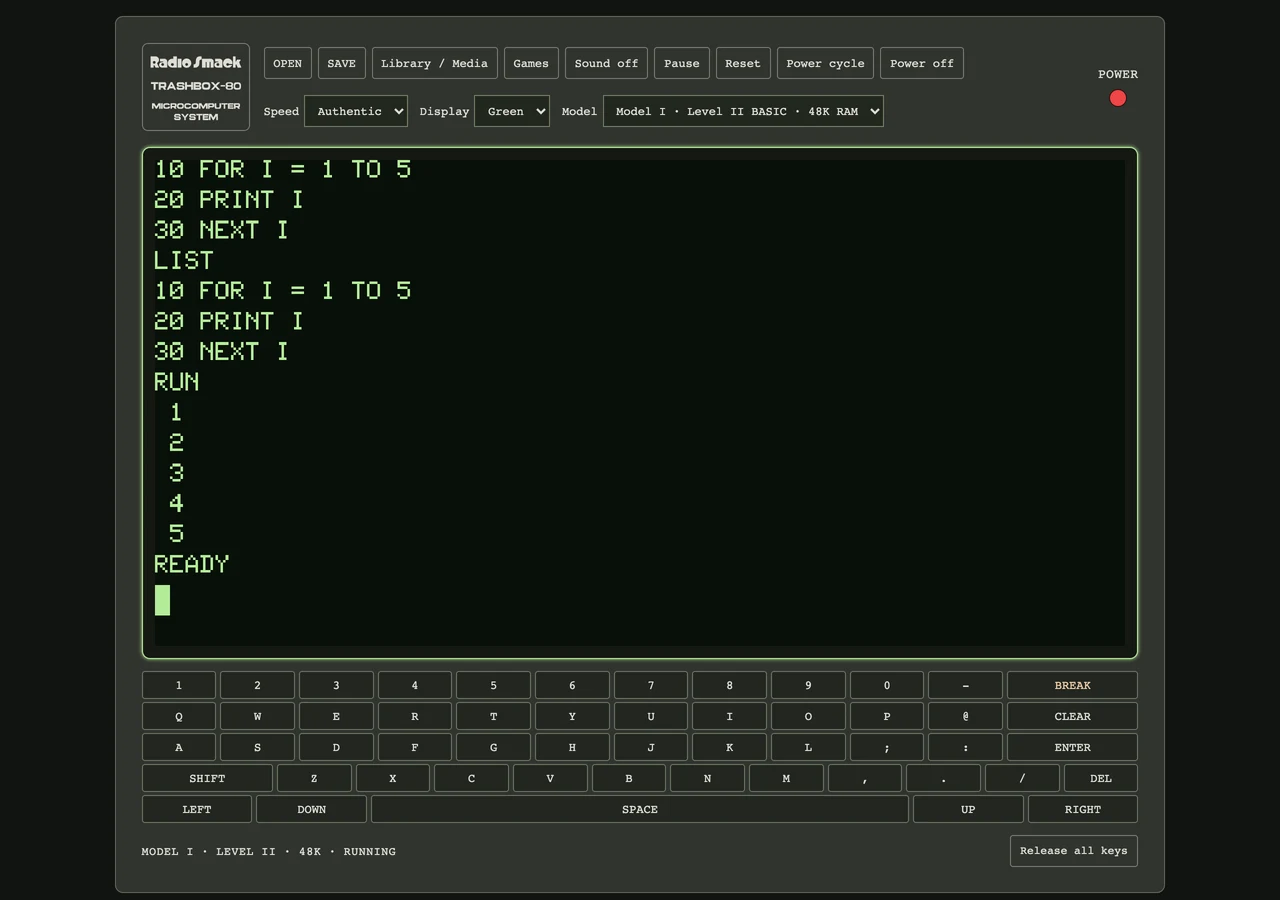
10 FOR I = 1 TO 5
20 PRINT I
30 NEXT I
RUN
You’ll see 1 through 5 and return to READY. You can also type PRINT 6*7 directly without a line number. The answer is 42.
Copy code copies text for your own files. To use it in the computer, type the lines or save the numbered lines as a plain-text .BAS file and use OPEN. Then enter RUN.
03 / THE ESSENTIALS
A small vocabulary goes a long way.
| Command | What happens |
|---|---|
NEW | Clears the current BASIC program. SAVE first if you want to keep it. |
LIST | Displays the stored program so you can read its numbered lines. |
RUN | Runs the current program. |
CLS | Clears the display; your stored program remains. |
PRINT "HELLO" | Prints a message immediately. |
SAVE "HELLO.BAS" | Requests a download and a browser-library copy of the current BASIC program. |
To change a line, type its number and the complete new instruction. To delete it, enter its number alone. Use LIST to see your changes.
04 / HANDS ON THE KEYS
Built in. Or plugged in.
The permanent TrashBox-80 keyboard works with taps and mouse clicks. A physical keyboard works when the computer screen has focus. ENTER submits a line; DEL or physical Backspace corrects typing; BREAK / Escape interrupts BASIC.
Arrow keys and letter controls depend on the program. Games show their own instructions, and the Arcade guide lists them. If a key seems stuck after switching apps or holding a touch control, choose Release all keys below the keyboard. Site dialogs temporarily take keyboard focus while you choose a file or name a save.
05 / A PROGRAM WORTH KEEPING
Open local files. Save real copies.
Opening a program
- Save your current work first.
- Choose OPEN → Choose file and pick a file from your device.
- For a loaded BASIC program, enter
LISTto inspect it orRUNto start it. Machine-code and media imports follow the actions shown by the app.
Supported choices include BAS, CMD, CAS, DSK, JV1, JV3, DMK, BIN, TXT, and DAT. TXT/DAT and other loose files may be companion data, not executable programs. The app validates what it can load; changing a filename does not convert a file.
Several files for one program
Select related CAS images together to mount a cassette set. Select multiple CMD programs to save them as separate library programs, or explicitly choose a data disk for companion-file use. Other supported loose-file groups can become a data disk. Generated data disks contain no DOS and cannot boot; use their individual file actions in Library / Media.
Saving a BASIC program
Choose SAVE, enter a name such as HELLO.BAS, and confirm. The browser downloads the current BASIC program and the app attempts to keep a copy in Library / Media. You can also enter SAVE "HELLO.BAS" at the prompt. If browser storage is unavailable, the download can still succeed.
Check your browser’s Downloads list or your device’s Files app. SAVE preserves BASIC source, not a full running-machine snapshot or every mounted disk change. Use the appropriate Export or Export disk action for other media.
06 / YOUR COLLECTION
Library / Media is local.
Open Library / Media to see imported and saved browser-library entries. Depending on the file, you can Load, Export, Duplicate, Rename, or Delete. Mounted disks have drive cards and file-browsing actions; mounted cassette programs have playback, rewind, and fast-load controls.
These are files in this browser on this device. They are not a cloud account or a physical cassette. Clearing site data, using a private session, or moving to another browser can leave your library unavailable. Export files you want to keep. Bundled games live in Arcade; saving a copy adds your version to the local library.
07 / TAKE A PLAY BREAK
Load a little fun.
Choose Arcade, find a title, and choose Load & Run. Confirm replacement of the current program, then follow the game’s on-screen prompt. Start at Authentic speed.
Load brings in the program without starting it. Use LIST to read it, edit numbered lines, or SAVE your own copy. BREAK returns to BASIC during play.
08 / THE CONTROL PANEL
A little control over your time machine.
- Sound
- Starts off. Choose Sound off to enable it; the label becomes Sound on. Audio is available at Authentic speed and depends on the running software and your device’s volume and sound permissions. Turbo and Fast suppress audio.
- Pause / Resume
- Stops and resumes execution while preserving the displayed screen. The power light stays on.
- Reset
- Requests the computer’s reset interrupt after confirmation. Unsaved program memory may be lost; save before resetting.
- Power cycle
- Clears machine memory and cold-starts BASIC after confirmation. Mounted disks stay inserted.
- Power off / Power on
- Power off stops execution and audio, switches off the light, and blacks out the screen. Power on cold-starts BASIC and retains mounted media. Save first: this is not a pause.
- Speed
- Authentic, Turbo ×4, and Fast ×16 change execution speed. Faster settings also accelerate games.
- Display & Model
- Green, Amber, and White change the screen color. Model describes the fixed Model I / Level II BASIC / 48K configuration.
09 / KEEP THE DOOR OPEN
Give it a place on your home screen.
Your browser may offer Add to Home Screen, Install page as app, or Create shortcut in its share or menu controls. For a shortcut to the computer itself, do this while visiting app.trashbox80.com. A shortcut created here opens this website.
Shortcut options vary by browser and device. A shortcut does not add offline support: you still need to load the site and game assets over the network.
NO TIME MACHINE REQUIRED
Your cursor is waiting
A whole little computer. A browser tab. Whatever you make of it.